


YearCam: AI Video Generator
4.2442.00 Reviews
App Specs
- Version
- 1.7.1
- Updated On
- License
- Free
- Downloads
- 5,000,000+
- Developer
- Fillog Studio
- Categories
- Art & Design
- Platform
- Android
Screenshots
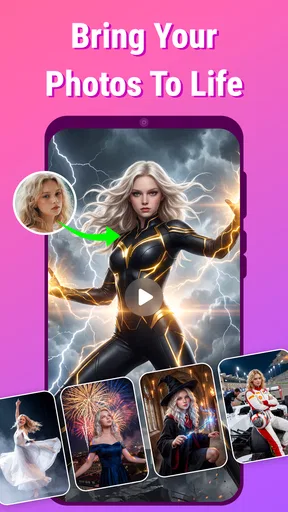
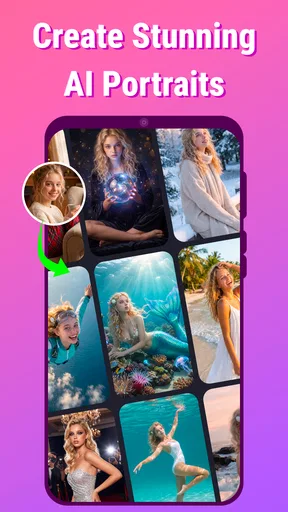
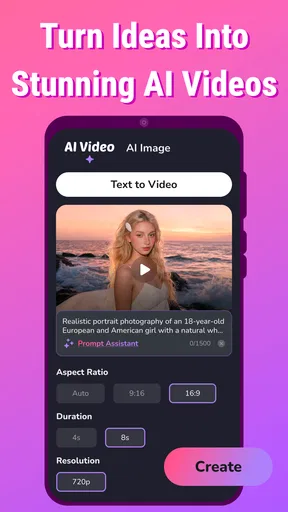
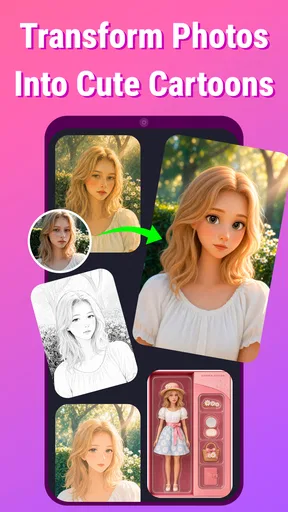
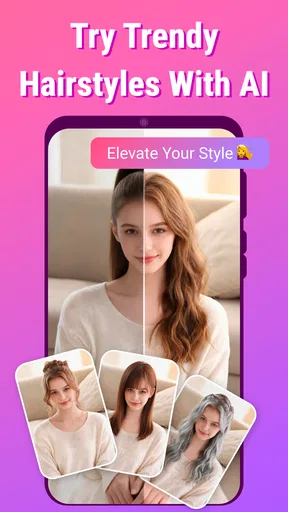
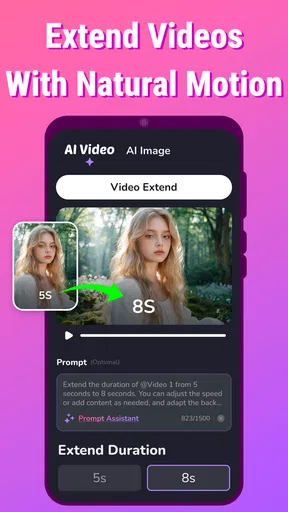
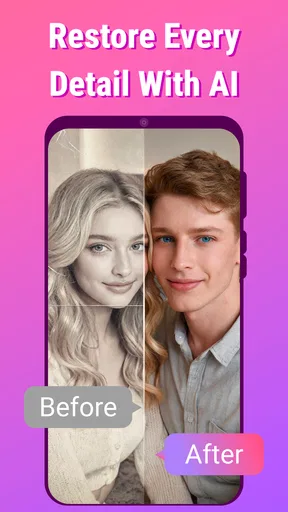
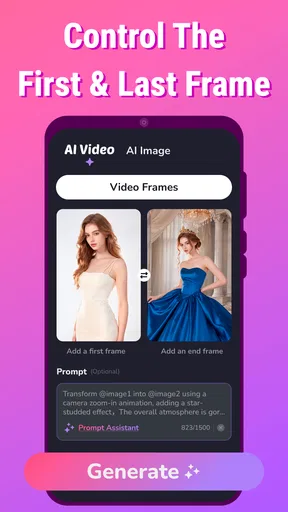
 Analysis by AppCompare
When I want to turn a single photo or a short idea into a video, I don’t always want to open a full editing suite and build everything by hand. YearCam: AI Video Generator is aimed at that quicker starting point: making a moving image from a still picture or a text prompt. I see it as an Art & Design app for experimenting with visual ideas, not a replacement for a careful timeline editor. That difference matters: it can help me get from “I have a rough idea” to “I have something to react to,” while the final result may still need a separate round of editing.
Start with the right source
The most useful first decision is choosing what the video should begin with. If I already have a photo with a clear subject, image-to-video gives me a more concrete visual anchor than a broad prompt. A portrait, a pet, a product shot, or a landscape can suggest a direction immediately. If I’m starting from words instead, I need to describe the subject and the intended mood plainly; a short, focused prompt is easier to judge than a sentence trying to request several unrelated things at once.
For example, if I’m making a quick clip for a friend’s birthday, I might begin with a photo that already means something to both of us rather than asking the app to invent the whole scene. That keeps the personal detail intact and lets the generated movement become the experiment. For a social post about a new idea, a text prompt can be a useful sketch before I decide whether the concept deserves more time. In either case, I’d treat the first generation as a draft, not as a finished creative decision.
From prompt to a usable draft
The appeal of an AI video workflow is that it changes the order of work. In a conventional mobile editor, I usually gather clips, trim them, arrange a sequence, and then add effects or text. Here, I begin with an image or an idea and ask the generator to create motion. That can be a welcome shortcut when I don’t have footage, but it also means I give up some control over the exact movement and pacing. I would use it to explore a look or produce a short visual insert, then move to a conventional editor if precise cuts, captions, or a carefully timed soundtrack are the main goal.
A practical tip is to keep the first attempt narrow. Pick one subject and one visual direction, then assess whether the result communicates what you meant. If it doesn’t, adjust the input rather than piling on more instructions. This makes it easier to identify whether the source image, wording, or overall concept is the weak link. It also helps avoid wasting time polishing a draft whose basic idea isn’t working.
First Impressions: A User-Friendly Interface
When you first open up YearCam: AI Video Generator, the sleek and intuitive interface immediately stands out. It’s got that clean design vibe that makes navigating a breeze. I was pleasantly surprised by how everything is laid out—everything you need is just a tap away. No need to hunt around or get frustrated with complex menus. It’s all about ease of use, which is a huge win in my book.
Features That Pack a Punch
Now, let’s get into the nitty-gritty of what this app can do. Whether you’re a seasoned video editor or just dabbling for fun, the features here are designed to cater to all. Here’s a quick rundown of what impressed me the most:
Worth Reading Before You Choose

EA SPORTS FC Mobile 26 Is a Bigger Football Game, but It Takes Time

Flipboard Shows What News Apps Must Do Beyond the Feed

Switching to Android Auto Means Rethinking Your Driving Routine

Google Calendar Makes a Crowded Week Easier to Manage

Ludo King Makes the Most of the Minutes Between Plans

Baby Panda World Brings Quick Play to Modern Phones, but Its Game Library Feels Busy
- AI-Powered Editing: The app uses artificial intelligence to help you create stunning videos. It’s like having an editing team in your pocket! The AI suggestions are surprisingly spot-on.
- Templates Galore: If you’re not feeling particularly creative, the pre-made templates are your savior. They’re customizable and cover a wide range of themes.
- Real-Time Effects: Adding effects is seamless and can be viewed in real-time, ensuring your video looks just the way you want it.
- Music and Sound Integration: Choose from a library of tunes or upload your own to give your video the perfect background score.
Creating Your Masterpiece
So, how does one go about creating a video masterpiece with this app? It’s easier than you might think. Start by selecting your desired footage or images, then let the AI do its magic. You can tweak to your heart’s content, but the AI does a great job of piecing things together. It’s almost like having a personal assistant who knows your style.
One thing I loved is the ability to preview your work on the fly. It gives you the chance to make adjustments without having to start from scratch. Talk about a time-saver!
Passing the result along
Before I share a generated clip, I watch it once with the sound off and once with sound on. The silent pass tells me whether the motion reads clearly as a visual; the second pass helps me decide whether the audio supports the mood rather than distracting from it. If I’m sending the clip to someone who may view it in a feed, I also check that the key subject is visible without relying on a long setup. This small review step is useful because an AI-generated scene can feel appealing at first glance but less clear when watched as a complete clip.
For a handoff to another editor, I’d keep the generated video as a source element and do any exact trimming, titles, or sequencing there. That’s a more reliable route than expecting a generative app to behave like a detailed editing timeline. It also makes the app useful even when I don’t want it to handle the entire project: I can use it for a visual starting point and finish the story with tools built for precise assembly.
Sharing and Saving: Seamless Integration
Once your video is ready to roll, sharing it is a breeze. The app integrates with all major social media platforms, so whether you’re an Instagram influencer or just sharing with friends on Facebook, you’re covered. Plus, you can save it in various formats, which is great for those of us who like to keep a digital scrapbook.
Where the workflow can stumble
Generative video is not the right choice when a project depends on exact continuity, a specific gesture, or a precisely timed sequence. If I need a product demonstration where every detail must stay faithful, or a work video that has to follow a strict script, I’d rather record or edit real footage. The generator is better suited to creative exploration than evidence, instruction, or anything where viewers must trust that every visual detail is literal.
There is also a difference between having a prompt and having a clear visual plan. A prompt that asks for many actions or changes at once can make the result harder to evaluate, while a source image with a cluttered composition gives the motion less room to read. I’d simplify the source before generating: crop around the subject, remove distractions where possible, and decide what the viewer should notice first. That is a useful trade-off—spending a little time preparing the input can make the experiment more informative, even though it doesn’t guarantee a particular result.
Who is likely to enjoy it
I’d recommend this kind of workflow to casual creators, social media users who want a visual variation on a still image, and anyone who enjoys testing ideas without learning a full editing program first. It can also be handy for a small business owner who wants a concept clip for a post, provided the clip is treated as creative material rather than a precise depiction of a product. A beginner can get value from seeing how a still image or short prompt changes when turned into motion, then decide whether to keep experimenting or switch to manual editing.
On the other hand, someone who needs detailed control over every frame, reliable continuity across multiple shots, or a complete production workspace may be happier with a traditional mobile video editor. I wouldn’t choose an AI generator as my only tool for a polished interview, a tutorial that depends on exact demonstrations, or a longer narrative with carefully planned cuts. The best fit is a person who wants a fast visual draft and is comfortable judging and refining what comes back.
What to expect before committing
YearCam is free to install, and its audience rating is 4.3 from around 17,000 ratings, with more than 5 million installs. Fillog Studio released it on April 18, 2023, and version 1.6.6 is listed for Android 7.0 and later. It is rated for Everyone, which makes the stated age classification broad, though I’d still use ordinary care when choosing images or prompts for a shared device. Optional in-app purchases range from $2.99 to $199.99 per item, so I would check the purchase details in the app before relying on paid capabilities or making repeated use part of a regular workflow.
That leads to a practical question: can I try it without spending money? Yes, the app itself is free, but the presence of in-app purchases means I would not assume every option or repeated use is included at no cost. I’d begin with a small, low-stakes project, see how the creation flow feels, and only consider a purchase if I understand exactly what it unlocks and know I’ll use it. This is a better approach than building a deadline-driven project around a feature before checking its terms.
What Sets YearCam Apart?
In a world full of video editing apps, YearCam: AI Video Generator holds its own with its smart use of AI and user-friendly design. It’s perfect for anyone who wants to create professional-looking videos without spending hours learning the ropes.
The support for high-resolution video is another plus. If you’re someone who appreciates the finer details, you’ll appreciate the crisp quality that YearCam delivers. It’s these little things that make a big difference.
The app’s community features are also noteworthy. Joining a community of creators can inspire you and provide new ideas. Plus, feedback from fellow users can be invaluable, especially if you’re looking to improve your skills.
The Final Verdict
Overall, YearCam: AI Video Generator is a fantastic choice for anyone looking to dive into video creation. Whether you’re making a quick clip for social media or putting together a more elaborate project, this app has the tools you need. The combination of AI technology, ease of use, and a plethora of features makes it a standout in its category.
So, if you’re ready to unleash your inner Spielberg, give YearCam a try. It’s like having a film studio right in your pocket, and trust me, you won’t be disappointed!
Pros
- AI generates videos quickly and efficiently.
- User-friendly interface for all skill levels.
- Offers diverse templates for various themes.
- Supports high-quality video exports.
- Integrates well with social media platforms.
Cons
- Limited customization for advanced users.
- Requires a stable internet connection.
- Free version has watermark on videos.
- Some features locked behind a paywall.
- Occasional lag on older devices.
FAQs for YearCam: AI Video Generator
What is YearCam: AI Video Generator and how does it work?
YearCam: AI Video Generator is an innovative app that allows users to create personalized AI-generated videos using their photos and video clips. By leveraging advanced AI algorithms, the app seamlessly combines these elements to produce high-quality, visually appealing videos. Users simply upload their media, select a theme, and let the app handle the rest.
Is YearCam available for both Android and iOS devices?
Yes, YearCam: AI Video Generator is available for download on both Android and iOS platforms. Users can find the app on the Google Play Store for Android devices and the Apple App Store for iOS devices. Be sure to check for any device compatibility requirements before downloading.
What are the main features of YearCam: AI Video Generator?
YearCam offers a variety of features, including customizable video templates, a library of music and sound effects, and AI-driven enhancements. Users can also add text and filters to their videos, ensuring a personalized touch. The app continuously updates with new themes and features to keep the content fresh and engaging.
Are there any costs associated with using YearCam?
While YearCam offers a free version with basic features, it also has premium subscription options that unlock additional templates, music tracks, and advanced editing tools. Users can choose between monthly or annual subscriptions, depending on their needs and budget. Always check for any in-app purchases that might apply.
How secure is my data when using YearCam?
YearCam prioritizes user privacy and data security. The app employs encryption and secure servers to protect user information and media files. Users should review the app's privacy policy to understand how their data is collected, used, and shared. It's always advisable to stay updated with any changes to these policies.


